Native import app for Mac and iPhone

PortageMove iPhone photos and videos to a drive you own.

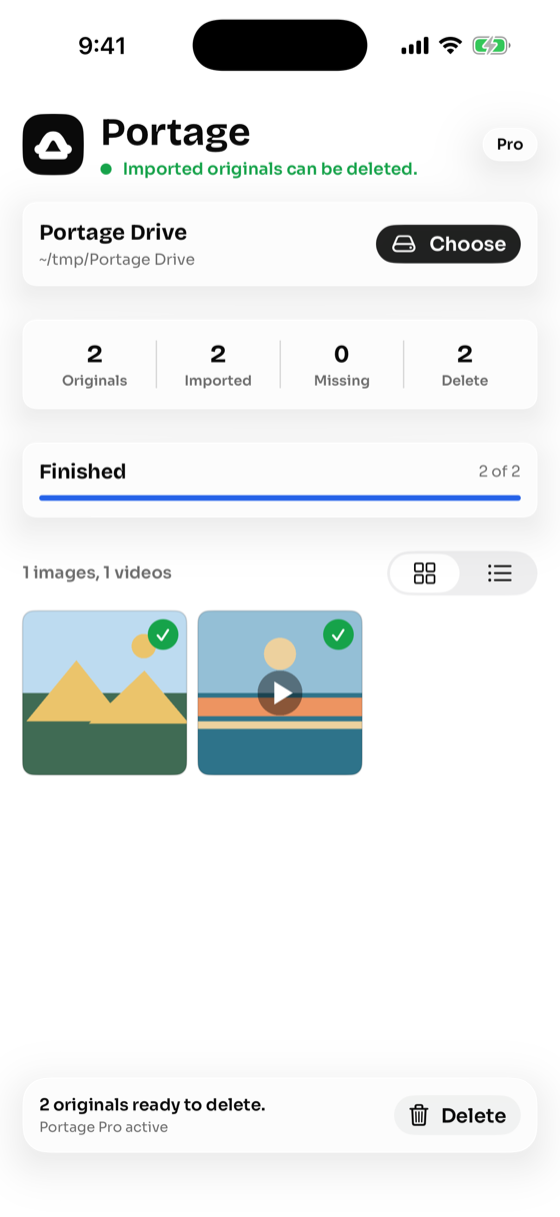
Portage copies your originals to an external SSD or folder, verifies every file, and deletes the phone copy only after the backup is proven. Free up iPhone storage with no cloud upload and no automatic deletes.

native app
macOS
native app
iOS
external storage
SSD
auto-deletes
0

See it work

Watch Portage import, verify, and delete — safely.

One path

Import only what is missing. Delete only what was verified.

Connect local storage

Use a cable on Mac or a USB-C drive on iPhone. Portage moves originals directly to storage you control — no cloud account, no upload.

Import the missing originals

Choose the destination once. Portage reads its manifest, skips what is already verified, and imports only the photos and videos that are missing.

Verify, then delete

Delete is enabled only after the copy exists, the byte size matches, and the manifest records the imported original. Nothing is removed automatically.

macOS

Portage for Mac

Connect iPhone with cable, choose an external drive, import originals, verify every file, and remove imported originals only after confirmation.

iOS

Portage for iPhone

Connect a USB-C SSD, export originals from Photos to the drive, write the same manifest, and delete only the verified imports.

Proof first

Delete stays locked until Portage has proof.

Manifest sync checks the selected destination first. Already-imported originals become delete-ready without copying again. Missing originals stay queued for import.

Destination file exists

Required

Expected byte size matches

Required

Manifest row is written

Required

User confirms deletion

Required

Questions

How Portage moves iPhone photos, answered.

What does Portage do?
Portage is a native Mac and iPhone app that copies your photo and video originals from your iPhone to an external drive or folder you own. It verifies every file, then lets you delete the phone copy only after the backup is proven — so you can free up iPhone storage without risking your originals.
How does Portage move photos off my iPhone?
On Mac, connect your iPhone with a cable and choose a destination drive; Portage imports the originals over USB. On iPhone, connect a USB-C SSD and export originals from Photos straight to the drive. Either way it writes a manifest and verifies each copy.
Will Portage delete my photos automatically?
No. Portage never auto-deletes. Delete stays locked until the destination file exists, the byte size matches the original, and the manifest records the import. Even then, you have to confirm the deletion yourself.
Does Portage upload my photos to the cloud?
No. Portage copies originals directly to local storage you control — an external SSD, USB-C drive, or folder. There is no cloud account, no upload, and your files never leave your devices.
Does Portage transfer full-quality originals?
Yes. Portage moves the original files — full-resolution photos and videos — not compressed or re-encoded copies, and confirms each one matches the expected byte size before it is eligible for deletion.
Why are fewer items shown than my iPhone reports?
Items in iCloud, Hidden, Shared Library, or Recently Deleted may not be exposed over cable. Portage imports and verifies what your device makes available, and records exactly what was copied in the manifest.

Native apps

Mac and iPhone apps for the same careful import workflow.

Portage is for people who want originals on their own drive, with a manifest that proves what was copied before anything is removed.